Competitive Settings Guide — Meter-Off, Pro Stick, HUD
View All competitive settings: meter-off shooting, Absolute Pro Stick, disable Passive Dribble Hand Switches, tidy HUD, All-Star practice, motion blur 0.
TL;DR
- Turn Shot Timing, Layup Timing, and Free Throw Timing ON; play shots with the meter OFF for a larger green window.
- Set Pro Stick Orientation and Pro Stick Defense to Absolute; keep Pro Stick Function and Pass Target Profile at Default.
- Disable Passive Dribble Hand Switches and Auto Lob to Moving Receiver; reduce Motion Blur to zero and hide cluttered HUD elements.
- Practice at All-Star with Game Speed 50 and Fatigue ON; turn off Action Replays and After Basket Camera Cuts for faster sessions.
What You Need to Know First
Requirements
| Item | Effect | Where to Get |
|---|---|---|
| Shot Timing (On) | Required for online modes; consistent shot timing | Settings → Controls → Shooting |
| Layup Timing (On) | Required for layups; matches online timing | Settings → Controls → Shooting |
| Free Throw Timing (On) | Consistent free throws across modes | Settings → Controls → Shooting |
| Pro Stick Orientation: Absolute | Consistent stick input regardless of court side | Controller Settings → Pro Stick Orientation |
| Pro Stick Function: Default | Allows hop steps, floaters, scoops | Controller Settings → Pro Stick Function |
| Passive Dribble Hand Switches: Disabled | Prevents automatic hand-switching during dribble | Controller Settings → Dribbling Options |
| Shot Meter Visibility (Shots): Off | Larger green window; less on-screen clutter | Customize HUD → Shot Meter |
Quick notes
- You’ll find all of these under Features → Settings / Controller Settings / Customize HUD in the main menu.
- MyPlayer jump shot creator overrides Shot Timing in MyCareer — but for Play Now and online modes the global setting matters.
- These are performance-focused choices: they favor consistency and control over visual aids.
Step-by-Step Guide
-
Open Settings
-
From the main menu go to Features → Settings, Controller Settings, and Customize HUD.
-
Controller: Shooting & Timing
| Setting | Recommended | Why |
|---|---|---|
| Shot Timing | On | Required for online; enforces skill timing |
| Layup Timing | On | Mandatory timing for layups |
| Free Throw Timing | On | Prevents inconsistent free throws |
| Shot Timing Visual Cue | Release (preferred) | Natural feel: release when ball leaves hands |
Turn Shot Meter Visibility for Shots to OFF in Customize HUD. Yes, it feels scary at first, but meter-off gives a measurable green window boost. Keep the meter ON for layups and dunks unless you want to train without it.
- Controller: Dribbling & Pro Stick
| Setting | Recommended | Why |
|---|---|---|
| Pro Stick Orientation | Absolute | Same directions on either side of court |
| Pro Stick Function | Default | Keeps hop steps, floaters, scoops available |
| Passive Dribble Hand Switches | Disabled | Stops random hand switches that telegraph moves |
Disabling Passive Dribble Hand Switches is one of those silent upgrades — you’ll stop feeling like the controller is memeing your dribble choices.
- Passing & Defense
| Setting | Recommended | Why |
|---|---|---|
| Pass Target Profile | Default | Reliable targeting for most players |
| Auto Lob to Moving Receiver | Disabled | Prevents the game from choosing lobs at bad times |
| Pro Stick Defense | Absolute | Consistent defensive stick behavior |
| Box Out Assist Strength | Big men: Lower; Guards/Wings: Default-high | Control for bigs, assist for smaller players |
- HUD & Visuals
- Shot Feedback: Simple for instant green confirmation; All Shots if you want contest/timing details.
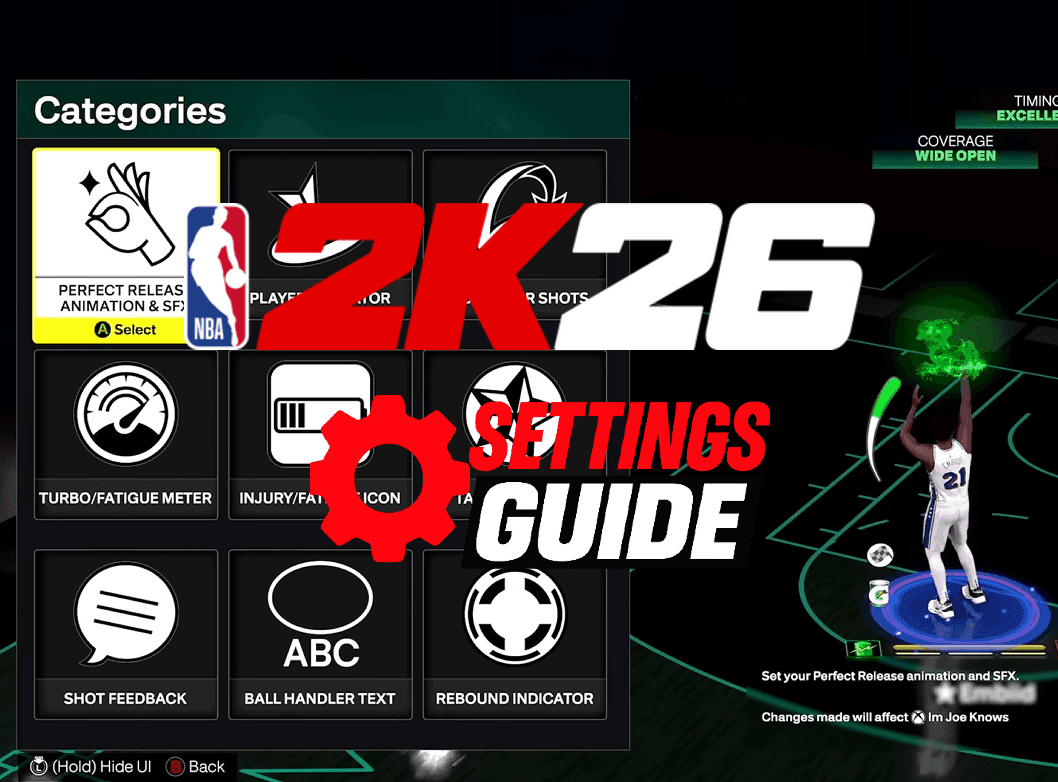
- Perfect Release Animations: Flame or Party Time, positioned Above Player for immediate visual confirmation.
- Turn Motion Blur to 0. Clarity beats cinematic blur in competitive play.
- Place Turbo and Fatigue indicators on the floor with medium sizing so they’re visible but not intrusive.
- Advanced Gameplay Adjustments
- Set Game Difficulty to All-Star in practice/scrimmage modes to mirror common online speed and behavior.
- Leave Game Speed at 50 to match online timing.
- Keep Fatigue enabled so you learn stamina management.
- Disable Action Replays and After Basket Camera Cuts if you’re grinding MyCareer or want uninterrupted sessions.
- Defaults You Shouldn't Fight
| Setting | Recommended |
|---|---|
| Skip Passes | Enabled |
| Icon Lead Passing | Default |
| Pro Stick Pass Type | Normal |
| Foul Out | Six fouls |
If something feels off, revert to defaults and change one thing at a time. That’s how you avoid chasing phantom nerfs.
Pro Tips
- Train meter-off shooting in short sessions. Start with corner threes and mid-range spot-ups — the green window is bigger, but timing still matters. Spend 10–15 minutes a day and you’ll stop blaming the meter.
- Use Release visual cue ‘Release’ setting when you play different players. Push can give earlier feedback but often misleads more than it helps in tight windows.
- Disable Auto Lob to Moving Receiver in online matches. Manual lobs are safer: you decide aim and timing; the AI deciding for you is how lobs get jacked or intercepted.
- Bigs should lower Box Out Assist Strength to control who they box out. If you’re cycling to rebounds, the assist fights your intentions and gives away positioning.
- Turn Motion Blur to zero and keep HUD clutter minimal. You want relevant info — stamina, shot feedback — not a disco of effects while you’re getting gassed.
Common Mistakes to Avoid
- Leaving Passive Dribble Hand Switches ON and wondering why your crossovers look telegraphed.
- Keeping Shot Meter ON for everything because turning it off 'feels wrong' — meter-off consistently helps green rate.
- Changing multiple controller settings at once and blaming the game when your timing’s busted.
- Relying on Auto Lobs in tight games — they’re great until they get intercepted or bounce off the rim.