Ghost of Yotei Settings Guide — Best PS5 & PS5 Pro Options
Optimize Ghost of Yotei on PS5 and PS5 Pro: camera, difficulty, graphics, HUD, and accessibility tweaks to balance performance, visuals, and combat comfort.
TL;DR
- Set Camera Speed to Fast for responsive combat; reduce Camera Wobble if you get motion sick.
- Use Performance (60 FPS) on PS5, or Ray Tracing Pro on PS5 Pro for a balance of smoothness and lighting.
- Pick Custom difficulty to tweak enemy aggression and parry timing if stock modes feel off.
- Enable Enhanced Wind Visibility and Combat cue enhancement for easier navigation and parry timing.
What You Need to Know First
Below are the basics to get your settings dialed before you start slicing through bandits or getting lost in Hokkaido. No special level or unlock is required—these are global settings you can change any time.
| Item | Effect | Where to Get |
|---|---|---|
| PS5 | Runs Performance (60 FPS) or Quality (30 FPS) modes | Console menu > Settings > Graphics Mode in-game |
| PS5 Pro | Unlocks Ray Tracing Pro mode (60 FPS ray-traced lighting) | PS5 Pro hardware + in-game Graphics Mode |
| Controller with stick drift compensation | Reduces unwanted camera movement at rest | Controller settings in-game (toggle) |
| Enhanced Wind Visibility | Makes wind guidance obvious for navigation | Accessibility settings in-game |
| Combat cue enhancement | Enlarges parry/attack indicators for easier timing | Accessibility settings in-game |
Quick notes:
- Camera Speed has three useful presets: Fast, Default, Slow/Cinematic. Fast gives the most responsive panning in fights.
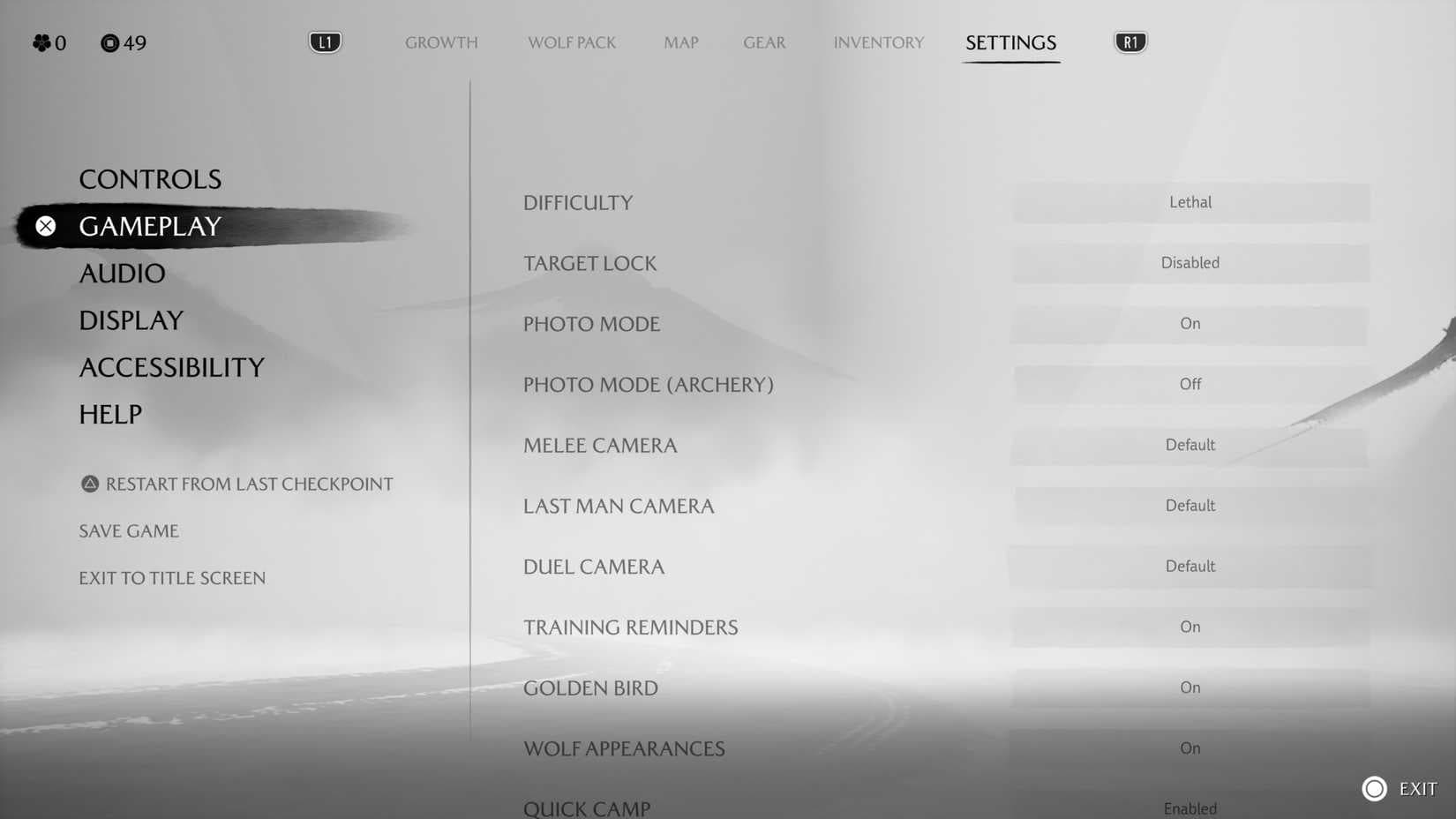
- Difficulty modes: Casual/Easy, Medium, Hard, Lethal, and Custom. Custom lets you fine-tune aggression, parry windows, damage, and stealth sensitivity.
- HUD options include Expert HUD (minimal UI), Show mask in cutscenes, and toggles for enemy status meters.
- Motion Blur, Camera Wobble, and wind gust camera are purely preference — but they affect comfort and readability, so don’t ignore them.
Step-by-Step Guide
Follow these steps in order; each change affects how the combat feels and how readable the world is.
-
Set your Graphics Mode based on hardware and goals.
- If you want smoother input and 60 FPS on base PS5, choose Performance.
- If you own PS5 Pro and want both ray-traced lighting and 60 FPS, pick Ray Tracing Pro.
Mode Frame Rate Resolution Special Features Quality 30 FPS Highest resolution Maximum visual fidelity Performance 60 FPS Lower resolution Smooth gameplay Ray Tracing 30 FPS Intermediate resolution Enhanced lighting Ray Tracing Pro (PS5 Pro) 60 FPS Intermediate resolution Ray-traced lighting at 60 FPS -
Camera: Speed, Wobble, and Drift
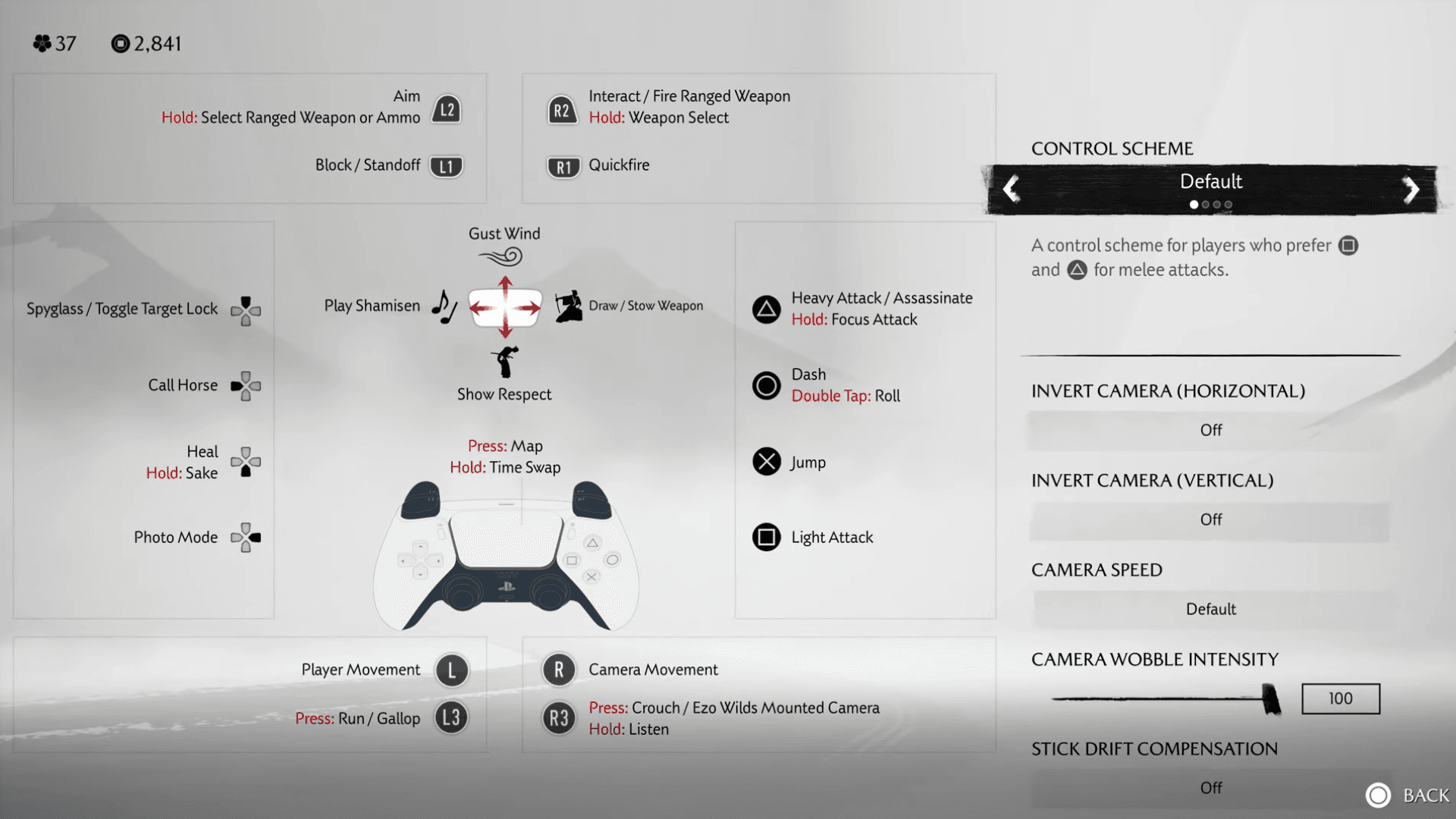
- Camera Speed: Start with Fast. It shortens reaction time in multi-enemy fights. Expect a short adjustment period if you’re used to Default or Slow/Cinematic.
- Camera Wobble: Set to zero if you’re prone to motion sickness; set to moderate for a cinematic feel.
- Stick Drift Compensation: Toggle on if your controller shows unwanted movement.
-
Difficulty and Combat Feel
- Try Medium first to learn enemy patterns.
- Move to Hard or Custom once you want tougher fights. In Custom, raise Enemy aggression or Enemy damage output to taste while keeping timing windows reasonable if you prefer fewer cheap deaths.
- Target Lock: Keep disabled to preserve free-flowing combat. If you prefer focus-targeting, enable it and turn on swap on defeat so fights don't stall.
-
HUD and Visuals
- Motion Blur: Off if you want clarity during fast movement; On if you like the cinematic blur.
- Expert HUD: Use only after you’re comfortable; it trims helpful indicators like stagger meters.
- Enemy status meters: Toggle stagger indicators on for easier fights, off for more challenge.
-
Accessibility and Navigation
- Enhanced Wind Visibility: Enable it. The directional wind becomes easier to follow, which stops you wandering aimlessly like a tourist in a storm.
- Wind gust camera: Enable if you want the camera to point toward objectives when using wind guidance.
- Combat cue enhancement & Simplified bamboo cutting: Turn these on if you have trouble with small UI cues or rapid button sequences.
- Aim assist and Simplified rapid button presses: Useful for ranged weapons and mini-games; enable as needed.
-
Aesthetic and Minor Toggles
- Atsu’s back item: Choose Nothing, Shamisen, Last used weapon, or Last melee weapon only based on taste. This is cosmetic.
- Subtitle Backdrops: On if you play with subtitles and want them legible against busy backgrounds.
-
Final testing: Load a combat scenario and a navigation sequence and tweak settings from there. If parries feel off, back off on Camera Speed or widen timing windows in Custom difficulty. If the game stutters in open areas, swap to Performance or lower visual settings.
Pro Tips
- If you’re chasing responsiveness, pair Camera Speed: Fast with Performance mode on PS5; input feels sharper even if visuals drop a shade.
- Use Custom difficulty to keep stealth forgiving while ramping up enemy aggression — that’s how you make sneaking still feel useful without turning combat into a wall of damage.
- Turn on Enhanced Wind Visibility before big exploration sessions; it saves time and cuts down on those “where am I” moments.
- Keep Expert HUD off until you’ve memorized enemy tells. It looks cool but removes indicators that save you from mistakes.
- If motion sickness hits you, disable Camera Wobble and Motion Blur together — it usually fixes the problem without touching frame rate.
Common Mistakes to Avoid
- Setting Camera Speed to Fast and leaving Camera Wobble high — makes the view twitchy and overwhelms beginners.
- Switching to Expert HUD too early and missing stagger and enemy status info during tough fights.
- Picking Quality mode on base PS5 expecting smooth 60 FPS inputs — you’ll get better combat feel on Performance for PS5.
- Leaving Combat cue enhancement off if you struggle with parries; that tiny UI change actually improves success rates significantly.