Disable PS5 Adaptive Triggers
Turn off PS5 adaptive triggers in View All via Settings>Accessibility>Controllers>Trigger Effect Intensity. Pick Off/Weak/Medium/Strong; changes are global
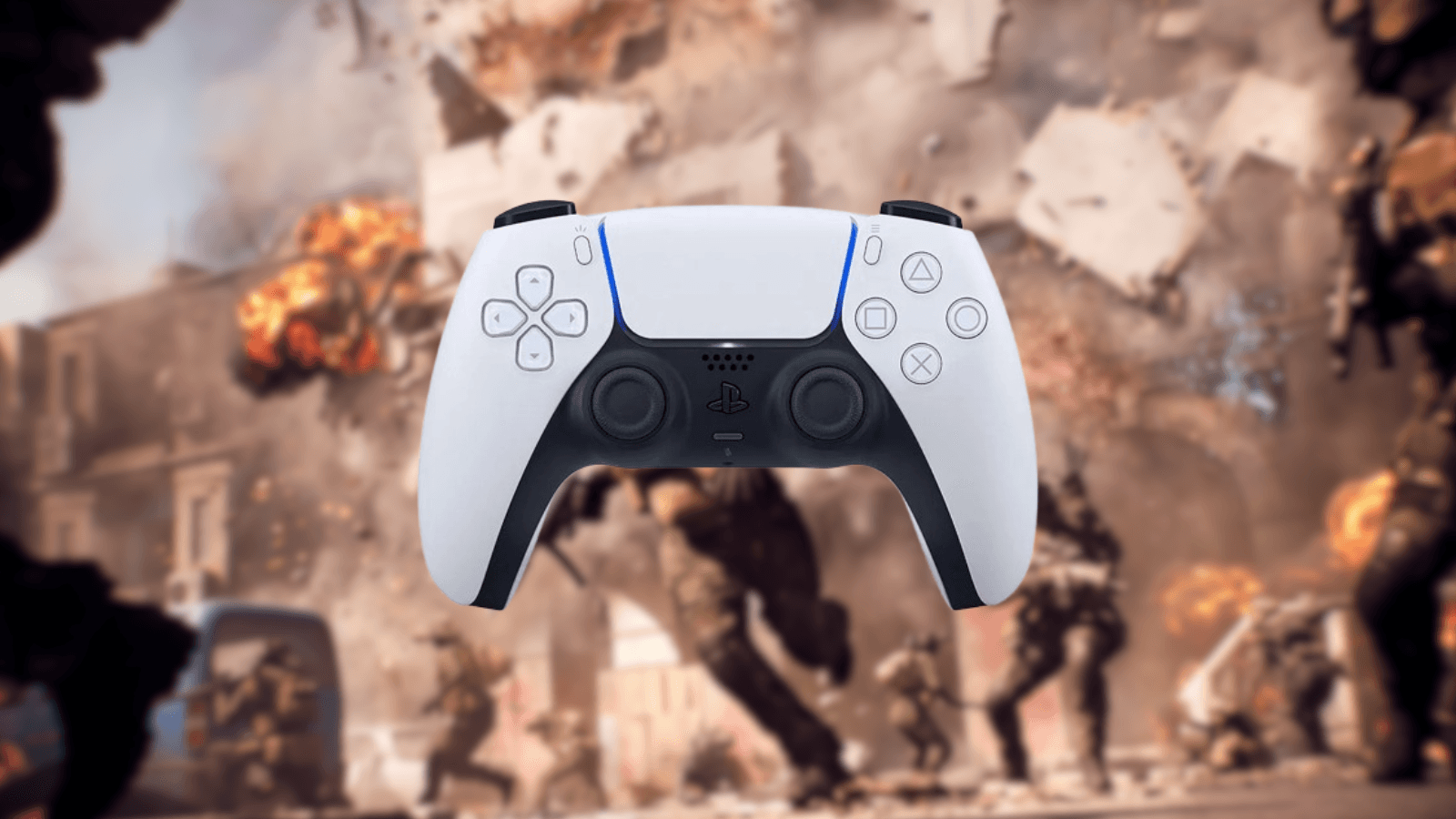
TL;DR
- View All has no in-game adaptive trigger toggle — you must change this in PS5 system settings.
- Open the quick menu, hit Settings → Accessibility → Controllers → Trigger Effect Intensity and pick Off/Weak/Medium/Strong.
- Changes apply system-wide and take effect immediately; they affect every game on the PS5, not just View All.
- If it doesn’t stick, restart the game, check controller battery/firmware, or reset and clean the DualSense.
What You Need to Know First
There's no in-game toggle for adaptive triggers in View All — you're changing the DualSense behavior at the console level. That means the setting affects every PS5 game until you change it again. It's quick to switch and reversible, but it also means a single flip changes comfort and performance across everything you play.
| Item | Effect | Where to Get |
|---|---|---|
| PS5 Console | Access to system settings where trigger intensity is set | Your console (Home screen) |
| DualSense controller | Adaptive trigger motors provide resistance | Bundled with PS5 or bought separately |
| Trigger Effect Intensity (UI) | System option to set Off, Weak, Medium, Strong | Settings > Accessibility > Controllers |
| System software up-to-date | Prevents weird bugs and ensures firmware compatibility | Settings > System > System Software |
| Time needed | Under 2 minutes | N/A |
Why this matters: competitive players often find adaptive resistance slows finger movement or causes fatigue in long sessions. If you want consistent twitch performance in View All multiplayer modes, set triggers to Off or Weak. If you like the feel in single-player, flip back to Medium or Strong when you're not chasing ranks.
Step-by-Step Guide
Follow these exact steps — no menu jujitsu required.
- Turn on your PS5 and make sure a DualSense is connected.
- Hold the PlayStation button on the DualSense to open the quick menu.
- In the quick menu, select the gear icon (Settings) in the top-right.
- Navigate to Accessibility from the main Settings list.
- Scroll down and select Controllers.
- At the bottom of the controller options, find Trigger Effect Intensity.
- Choose your preferred setting: Off, Weak, Medium, or Strong.
- Back out of Settings — changes apply immediately. Launch View All to test.
If you prefer a visual breakdown:
| Setting | Effect | Best For |
|---|---|---|
| Off | No resistance from adaptive triggers | Competitive multiplayer, long sessions, fast twitch play |
| Weak | Minimal feedback, low resistance | Casual multiplayer, less fatigue with mild feel |
| Medium | Noticeable resistance | Balanced single/multiplayer players who want some feedback |
| Strong | Full adaptive force | Single-player immersion, immersion-first setups |
Troubleshooting table:
| Symptom | Likely Cause | Quick Fix |
|---|---|---|
| Setting didn't change | Game still running or glitch | Completely close View All and reopen |
| Triggers still resist | Controller low battery | Charge DualSense and retry |
| Inconsistent trigger behavior | Dust or firmware bug | Clean trigger crevice, check controller firmware, reset controller |
Reset controller: press the small reset button on the back (paperclip) if motors act up. Also verify PS5 system software and controller firmware are current in Settings > System.
Pro Tips
- Start with Weak before going to Off. Weak keeps a little tactile memory of triggers without the exhaustion — it’s the middle ground most folks end up living in.
- If you switch often between single-player and competitive, use a quick routine: change to Strong/Medium for solo missions, flip to Weak/Off before jumping into ranked matches.
- Combine Off triggers with adjusted aim sensitivity and deadzone settings in View All. Removing trigger resistance can change your muscle memory; fine-tune sensitivity so your aim doesn’t feel floaty.
- If you have multiple controllers, keep one with Off for tournament nights and one with Medium/Strong for casual or co-op sessions. Saves fiddling mid-session and keeps your hands happy.
Common Mistakes to Avoid
- Expecting the change to be game-specific — Trigger Effect Intensity is system-wide, so you’ll change how every game feels.
- Not fully closing View All after adjusting settings. The console applies changes, but the game may need a restart to reflect them properly.
- Ignoring controller battery and firmware. Low power or outdated firmware can make motors behave oddly even after you change settings.