Sonic Racing CrossWorlds: Best Competitive Settings Guide
Optimize Sonic Racing: CrossWorlds settings for consistent lap times — camera, steering, sensitivity, HUD, and button remaps. Competitive and casual presets.
TL;DR
- Use Camera: Standard and turn Steering Assist Off for higher top speed and cleaner drift lines.
- Set Steering Sensitivity around 6 for general play; push 8–10 if you want max precision.
- Disable vibration, remap buttons to your comfort, and try gyro tricks on Nintendo Switch if you like.
- Keep Position, Item display, Lap counter, and Warnings on for competitive races; test settings on varied tracks.
What You Need to Know First
Before you tinker: these settings live in Extras > Options and are unavailable during online matches. Make changes before queuing — nobody likes swapping settings mid-race while getting demolished.
| Item | Effect | Where to Get |
|---|---|---|
| Game installed | Required to change settings | N/A |
| Access to Extras > Options | Opens the settings menu | Main Menu |
| Controller (recommended) | Precise inputs and remapping | Any supported controller; gyro supported on Nintendo Switch |
| Familiarity with drifting | Helps evaluate Steering Assist off | Play a few time trials or casual races |
| Patience for testing | You will crash more when learning | Practice on tracks with tight and sweeping corners |
What you don’t need: level gating, unlocks, or DLC to change these basic settings. What matters is practice — settings tune your tools, they don’t replace skill. If that sounds like Coach Taylor, it should.
Step-by-Step Guide
-
Open Options
- Go to Extras from the main menu, then Options. Double-check: you can’t access these while in online matches.
-
Camera: Pick Standard for competitive play
- Why: Standard gives a consistent viewpoint and better track visibility. Dynamic is cinematic but can hide apexes.
-
Turn Off Steering Assist
- Effect: Disables automatic course corrections so you can hit optimal drift lines and higher top speeds. Expect more wall hits at first.
-
Decide on Auto Accelerate
- Recommendation: Off for most competitive players for rhythm control. Keep On if you panic after item hits or prefer fewer throttle inputs.
-
Trick Assist and Gyro
- Trick Assist: Manual tricks are easy with stick flicks. If you’re on Nintendo Switch, try gyro trick input — it can feel more natural for aerial follow-ups.
-
Remap Buttons
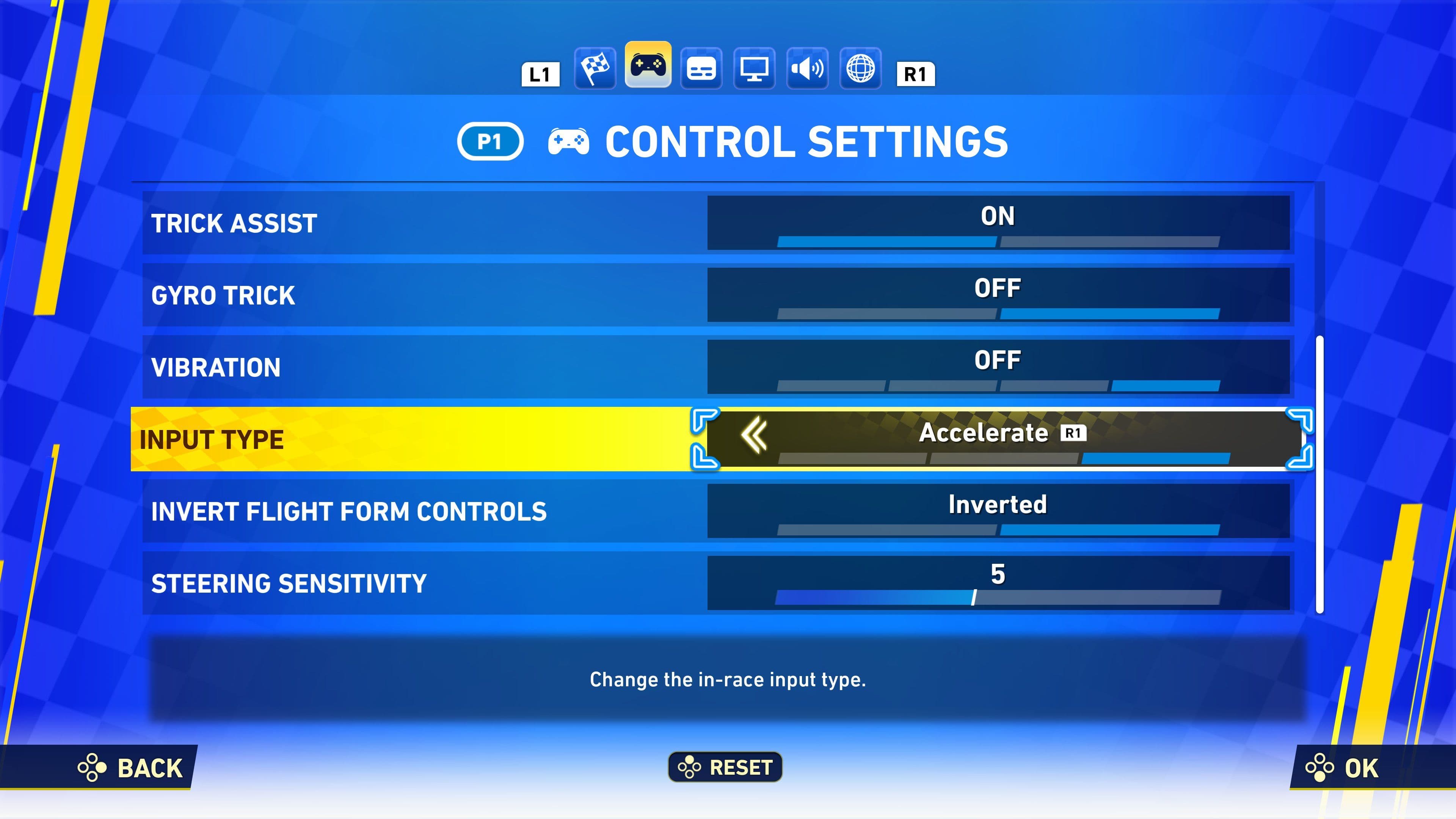
- Access Input Type > Customize. Move accelerate, drift, and item buttons to what feels natural. Example remap table:
| Item | Effect | Where to Get |
|---|---|---|
| Accelerate (default X) | Speed control | Options > Input Type > Customize |
| Drift | Cornering mechanics | Options > Input Type > Customize |
| Items | Use power-ups | Options > Input Type > Customize |
-
Steering Direction and Vibration
- Steering Direction: Use Normal unless you’re used to inverted setups.
- Vibration: Turn Off for competitive play — constant rumble makes fine steering inputs harder.
-
Find Your Steering Sensitivity
- Test on mixed-corner tracks. Here’s what each range feels like:
| Sensitivity | Feel | Best For |
|---|---|---|
| 1–3 | Sluggish, unresponsive | New players, very casual play |
| 4–6 | Standard responsiveness | Beginners to intermediate players |
| 7–10 | High precision | Advanced players wanting max control |
- Practical pick: Sensitivity 6 is a safe baseline. If you chase pixel-perfect apexes, move to 8–10.
-
HUD and Warnings
- Keep these on for competitive play: Position indicator, Item display, Lap counter, Warning notifications.
- Hardcore mode: You can remove HUD entirely. Only do this if you’ve memorized tracks and like pain.
-
Save and Test
- Run Time Trial or casual matches. Change one thing at a time and note lap times or consistency. If a setting doesn’t improve laps after a few runs, revert it.
Final quick presets
| Setup | Camera | Steering Assist | Sensitivity | Vibration |
|---|---|---|---|---|
| Competitive | Standard | Off | 8–10 | Off |
| Casual | Dynamic | On | 5–6 | Personal preference |
Tweaking is not cheating. It’s making the game stop working against you.
Pro Tips
- Run a consistent test loop: pick a track with both tight chicanes and sweeping turns, then do 5 clean laps before changing anything. Small sensitivity shifts look huge when you change multiple settings at once.
- If you switch from Steering Assist On to Off, reduce sensitivity a touch for the first session to avoid oversteer. Build it back up as you relearn drift angles.
- Use Button Mapping to put Drift on a face button if you want tap-drift timing instead of holding — some players gain more consistent links that way.
- Gyro trick input on Nintendo Switch can shave mental overhead when chaining aerials; pair it with manual Trick Assist off to get both control and flair.
- Leave Warnings enabled even if you remove other HUD elements. Getting blindsided by an incoming attack without a warning is how promising runs die.
- If you play on different platforms, keep a short note of your remap layout — muscle memory is platform-specific and worth guarding like a secret recipe.
Common Mistakes to Avoid
- Turning off Steering Assist and immediately blaming the game — it’s a skill gap, not a bug. Practice time is required.
- Changing multiple settings at once and not measuring which change helped or hurt. One tweak per session keeps progress trackable.
- Leaving vibration on during competitive matches. It’s subtle, but that rumble steals micro-corrections when you need them most.