
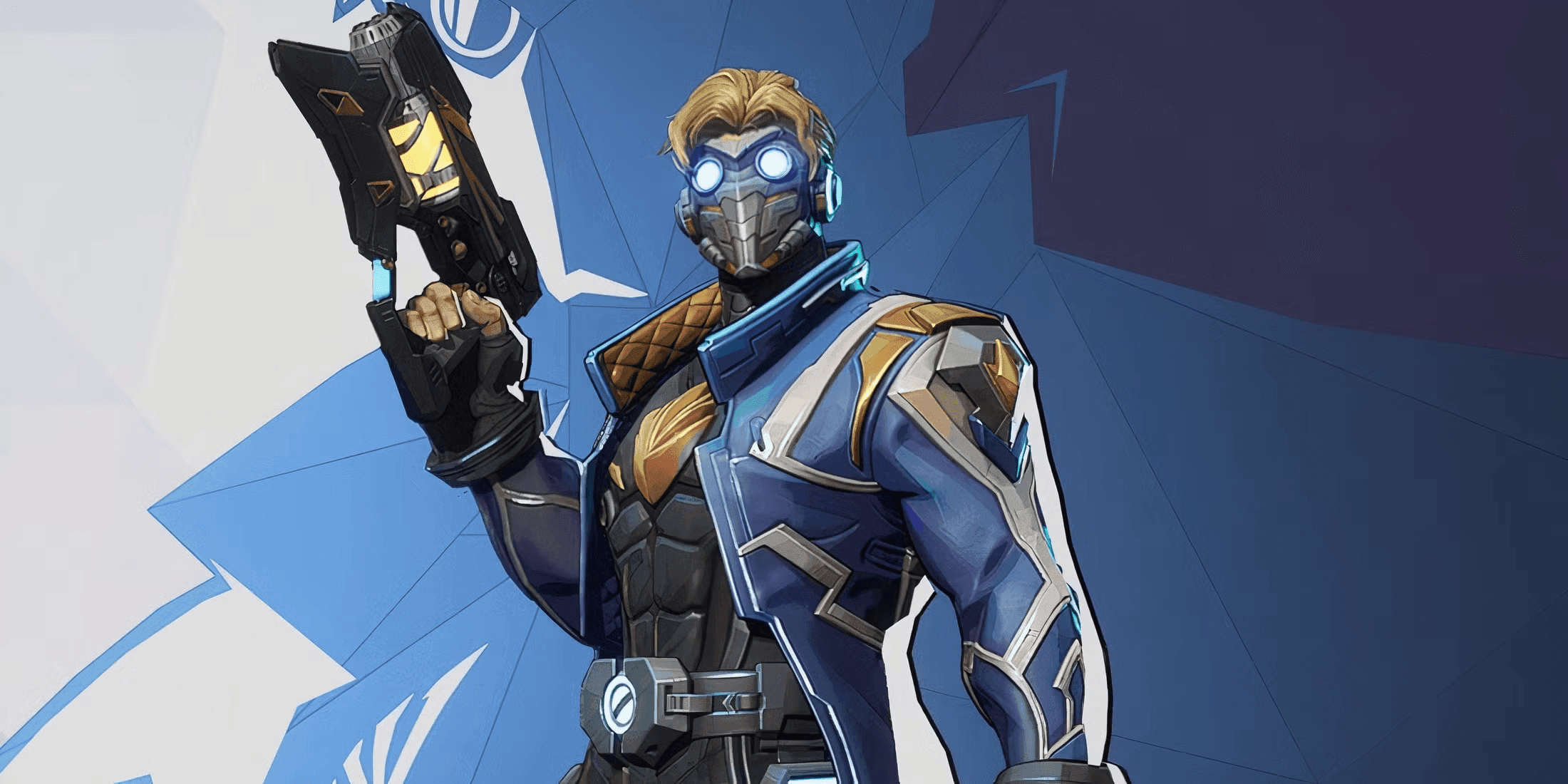
Claim Star-Lord Ignite Skin & All Marvel Rivals Twitch Drops
Link your Twitch and Marvel Rivals accounts, watch 4 hours during IGNITE Mid-Season Finals, and claim the Star-Lord Ignite skin plus all event Twitch drops.
TL;DR
- Link your Twitch and Marvel Rivals accounts and enable Twitch Drops tracking in Connections.
- Watch a total of 4 hours during IGNITE Mid-Season Finals to unlock the Star-Lord Ignite Costume.
- Three drop periods stagger rewards—some need 1–2 hours, the costume needs 4 hours.
- Claim on Twitch Drops Inventory, then collect items from Marvel Rivals Inbox before the windows close.
What You Need to Know First
Quick facts before you start — no ceremony, just the essentials.
- You can accumulate watch time across multiple sessions; it doesn't have to be one straight block.
- Drops only register when your Twitch account is linked to your Marvel Rivals game account and Drops are active.
- Rewards must be claimed on Twitch, then collected in-game from the Inbox.
| Item | Effect | Where to Get |
|---|---|---|
| Linked Twitch Account | Enables Drops tracking and claim eligibility | twitch.tv/settings/connections or Twitch Drops page |
| Marvel Rivals game account (Console/PC) | Receives cosmetics after claiming on Twitch | Your platform’s Marvel Rivals account login |
| Required watch time | Unlock thresholds for each reward (1h, 1.5h, 2h, 4h) | Watching participating Marvel Rivals Twitch channels |
| Twitch Drops page | Central hub for event info and linking | Official Marvel Rivals Twitch Drops landing page |
| Claim window | Time before rewards expire after event release | Check Twitch Drops Inventory and Marvel Rivals Inbox |
If you want the Star-Lord Ignite Costume specifically, budget for 4 hours total watch time during Drop Period 3. The tournament is long enough that watching a few matches will do the job — pro tip: best-of-fives do heavy lifting.
Step-by-Step Guide
Follow these steps in order. Don’t skip linking — that’s where most people trip up.
-
Link accounts and confirm Drops are enabled
- Go to the official Marvel Rivals Twitch Drops page.
- Click Log in to your game account and choose your platform.
- Select Connect your Twitch account and authorize the connection.
- Verify the connection in twitch.tv/settings/connections — you should see Marvel Rivals listed.
-
Watch participating streams until the required watch time is logged
- Watch any participating Marvel Rivals channel; watch time accumulates across streams.
- You don’t need to watch the entire event live; leaving a tab open while you watch counts as long as Twitch is playing.
- Aim for big matches to maximize time efficiency — best-of-five/day and the best-of-seven final cover a lot of minutes.
| Item | Effect | Where to Get |
|---|---|---|
| Period 1 (Aug 6 - Sep 2) | Mid-Season Ignition Spray (1 hour); Ignite Guangzhou Nameplate (1.5 hours) | Participating Twitch channels during Drop Period 1 |
| Period 2 (Aug 9 - Sep 5) | Ignite Guangzhou Spray (1 hour); Ignite Star-Lord Nameplate (1.5 hours) | Participating Twitch channels during Drop Period 2 |
| Period 3 (Aug 10 - Sep 6) | Champion Celebration Emote (2 hours); Star-Lord Ignite Costume (4 hours) | Participating Twitch channels during Drop Period 3 |
-
Claim drops on Twitch
- Open Twitch and go to Inventory > Drops.
- Look for Marvel Rivals rewards marked "Ready to Claim".
- Click Claim next to each earned reward.
-
Collect items in Marvel Rivals
- Launch Marvel Rivals and go to the main menu.
- Open your Inbox and collect each reward individually.
- Verify items appear in your cosmetics collection; if not, relog and check again.
| Item | Effect | Where to Get |
|---|---|---|
| Claimed Drops | Move from Twitch inventory to in-game Inbox | Claim on Twitch Drops Inventory, then collect in Marvel Rivals Inbox |
| Unclaimed/Expired Drops | Will not appear in-game once expired | Check event end dates; unclaimed items expire automatically |
Final check: rewards are released at different times during the event, and you have until the listed claim deadlines (early September windows) to pick them up. If something looks missing, confirm account linking first — that’s almost always the culprit.
Pro Tips
- Watch during big matches — best-of-five and the grand final rack up hours fast. Don’t babysit every low-stakes lobby.
- If you use multiple devices, link the same Twitch account everywhere. Watching on mobile + PC still counts to the same total.
- Use Twitch’s picture-in-picture or reduce player quality if you need to multitask; the stream just has to be playing.
- Claim drops on Twitch as soon as they appear. Waiting risks accidental expiration or inbox clutter.
- If a reward doesn’t show in-game after claiming, hard-close Marvel Rivals and log back in; the Inbox can be slow to sync.
Common Mistakes to Avoid
- Not linking Twitch and Marvel Rivals accounts correctly — check twitch.tv/settings/connections first.
- Assuming watch time must be continuous; it accumulates, so short sessions add up.
- Forgetting to claim on Twitch before trying to collect in-game — claiming is a required step.
- Leaving muted streams that don’t actually play (autoplay blockers or paused tabs won’t register watch time).